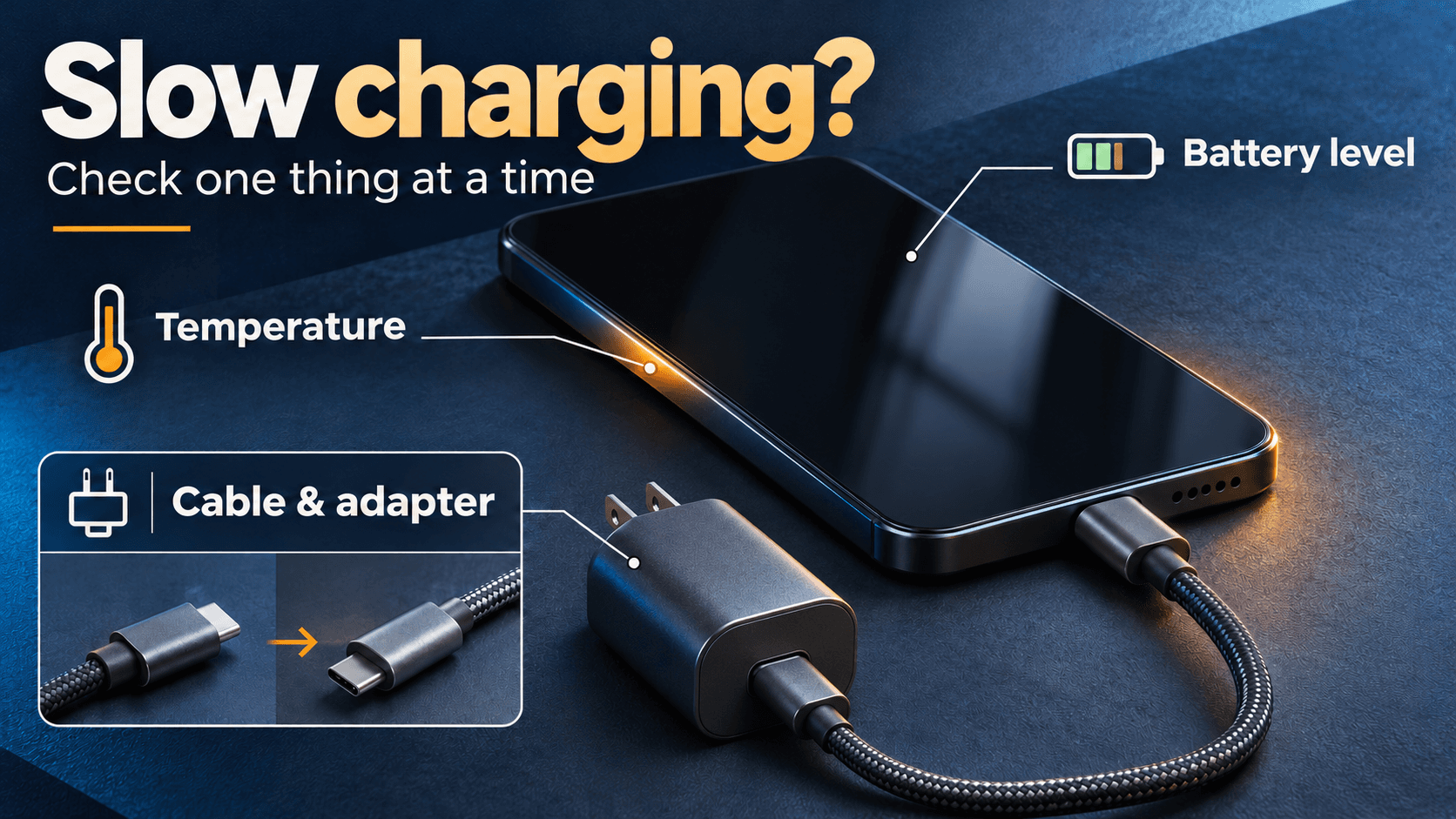
Start with a compatible charger and cable, leave the screen off, and let a hot phone cool before trying again. Check for port warnings and charging limits. Compare sessions at a similar battery level, changing one thing at a time: slow charging alone does not identify a faulty cable or battery.
When your phone has been plugged in for a while but the percentage barely moves, start by noticing when it happens. Slow only near full, slow during a game, and slow with one particular cable are different problems. This guide helps you narrow down the cause before buying another accessory.
Start with the symptom you can see
| What happens | First useful check |
|---|---|
| Slow only near the end of a charge | Check for the normal end-of-charge slowdown, a charge limit or scheduled completion time |
| Slow while gaming or navigating | Pause the activity and compare with the screen off |
| Slow with one charging setup | Check compatibility, then change one accessory |
| Charging repeatedly disconnects | Check the connection and any port warning |
| Slow only on a wireless pad | Check placement, case compatibility and the pad's power supply |
If a heat or moisture warning appears, follow it before testing speed. For an overheated Pixel charging connection, Google instructs you to unplug the adapter from the outlet first, allow cooling, then disconnect the cable. Do not keep reconnecting to bypass the warning.
Check the charger and cable as a pair
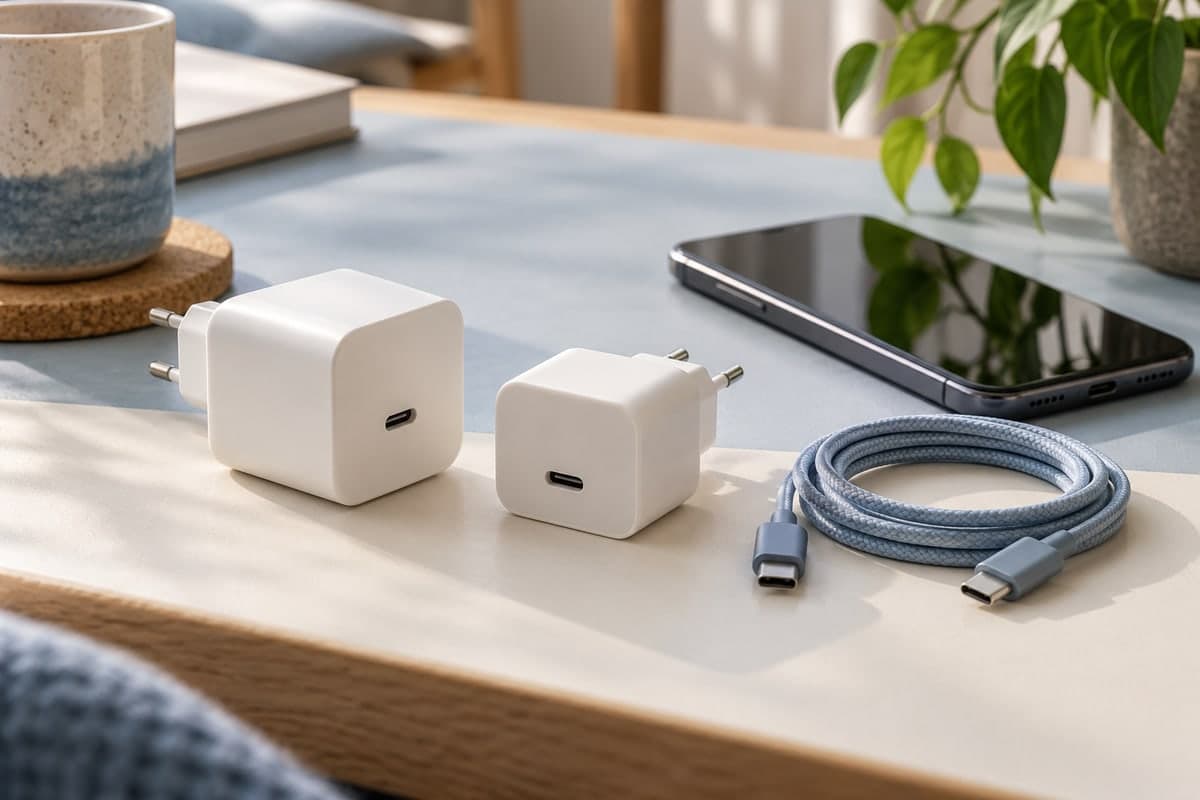
Check your phone manufacturer's charging requirements, including the supported standard and recommended cable. Two accessories with the same connector can support different charging modes. Google's Pixel guide, for example, distinguishes compatible USB Power Delivery and PPS adapters from other adapters that may charge slowly or fail to charge.
A charger's wattage is its maximum output rating, not a promise of constant power at your battery. With compatible USB Power Delivery equipment, the device negotiates the power it needs. A larger number on the adapter therefore does not automatically improve speed. USB-IF explains this power negotiation.
On a multi-port charger, check the power available at the port you use. For a controlled comparison, disconnect other devices and keep using the same port: shared output can change the charging rate. Samsung documents this power sharing for its Trio adapter. For help reading output limits, see the charger wattage guide.
Use a working outlet and a known-compatible setup for your comparison. Check that the connectors fit securely, without forcing them. Then try another compatible cable, keeping the charger unchanged; test another compatible charger separately. This follows Google's accessory troubleshooting approach, while changing one item at a time makes the result easier to interpret.
A laptop connection is not automatically slow: its available output matters. USB-IF documents higher-power delivery through laptop ports, so check that port's specifications rather than judging only by its shape.
Let a hot phone cool and pause demanding use
Games, video calls and navigation can warm the phone while it is charging. A phone may reduce charging speed to control its temperature. Google's heat guidance recommends stopping demanding activity and keeping the device away from direct sun and poorly ventilated spaces.
If it is too hot, disconnect the power and leave it unused in a cooler place until it cools. For the next comparison, keep the screen off instead of watching the charging number continuously. You want to compare similar conditions, not a quiet phone against one running a game. A clear improvement is a reason to investigate use and temperature before replacing accessories.
Check charging settings before assuming a fault
On supported Galaxy models, look under Settings → Battery → Charging settings for Fast charging. Also check Battery protection. Names vary by model and software. Samsung's troubleshooting guide explains that these settings can change speed or limit the final charge level.
Pixel's Charging optimization can schedule completion around your usual unplugging time or limit charging to 80%. Check the displayed explanation before changing anything; a planned pause may be doing exactly what you selected. Google describes these options here.
If the phone charges normally at lower levels and only slows as it fills, read the separate guide to charging that slows after 80%. That pattern needs a different comparison from charging that is slow throughout.
Inspect a troublesome port; check wireless placement
Look for visible damage or debris without putting objects into the port. Stop using a damaged cable. For moisture, let the connection dry and follow your phone's instructions before reconnecting. Burned, melted or corroded connectors need service, not another speed test. Google's port-warning guide covers these signs and when to contact support.
For wireless charging, confirm that the pad supports your phone, position the phone as instructed, and check whether the case interferes. The pad also needs a suitable adapter. Comparing wired and wireless charging helps separate a wireless setup issue from a problem affecting both methods. Google's wireless charging guidance covers compatibility, placement and cases.
Run a useful charging speed comparison
Treat this as a home comparison, not a laboratory measurement:
- Use the same phone at a similar starting percentage and temperature.
- Keep the outlet, charging port and screen use the same; disconnect other devices from a multi-port charger.
- Change only one item, such as the cable.
- Record the starting level, ending level and elapsed time over the same interval.
- Repeat if the result is inconsistent; do not condemn an accessory from one reading.
For example, comparing two screen-off sessions beginning around 30% is more informative than comparing one at 30% with another at 90%. These are illustrative starting points, not required targets or test results. You do not need to drain the battery deliberately to run the comparison.
Use the readings to decide what to do next
The multi-device battery monitoring app “Maqbis” helps you monitor and share battery status with family and friends, free and without ads. Its charging information can also make the comparison above easier to follow:
- Current power and session average: check the label so a brief fluctuation is not confused with the session's overall behavior.
- Last session's peak power and duration: review both, since a high peak alone does not describe the whole charge.
- Battery temperature and estimated time to full: see whether the conditions have changed and plan your next top-up. The time is an estimate, not a guaranteed finish.
- Consumption with the screen on and off: use discharge history to understand how active use affects your battery needs between charges.
The readings describe what is happening at the battery; they do not directly measure the adapter's full output or prove which component is faulty. Use a consistent improvement after one change as a clue. If a known-compatible setup remains slow under comparable conditions, seek a manufacturer or repair assessment. Samsung recommends inspection when charging issues persist.
For shared devices, battery sharing lets you see the status that family and friends choose to share, while low-charge and full-charge alerts help you coordinate charging without repeatedly checking each phone. That keeps the practical goal in view: enough charge when it is needed.
Frequently asked questions
Why is my phone charging slowly even with a fast charger?
The phone, charger and cable must support a compatible charging mode. A high wattage on the charger does not guarantee that speed on your phone. Heat, active use and a nearly full battery can also reduce the charging rate.
Can a charging speed test tell me whether my cable is broken?
A single reading cannot. Compare the same phone at a similar battery level and temperature, changing only the cable. A repeatable improvement points toward the original cable or connection, but does not distinguish damage from incompatibility.
Why does my phone charge slowly overnight?
Check whether an adaptive charging schedule is delaying completion until you usually unplug, or a charge limit is enabled. If it is also slow during a cool, screen-off daytime session, work through the accessory and connection checks.
Does slow charging mean I need a new battery?
No. Check compatible accessories, temperature and charging settings first. Persistent problems with a known-working setup deserve a manufacturer or repair assessment; charging speed alone is not a battery-health diagnosis.
Sources
- Charge your Pixel phone — Google
- Samsung Galaxy device may appear to be charging slowly or not charging at all
- USB Charger (USB Power Delivery) — USB-IF
- Fix Unplug charger or Liquid or debris messages — Google
- Help keep your Pixel phone from feeling too warm or hot — Google
- Get the most life from your Pixel phone battery — Google
- Fix a Pixel phone that will not charge or turn on — Google